
Choose the part that prints
Tap the crop button next to a photo. Drag to move it, pinch or tap Zoom In and Zoom Out. The dimmed parts won’t print.
Your iPhone fits a photo to the whole page. iPrint Printer prints it at the size you pick, on the letter or A4 paper already in your printer, several to a sheet.
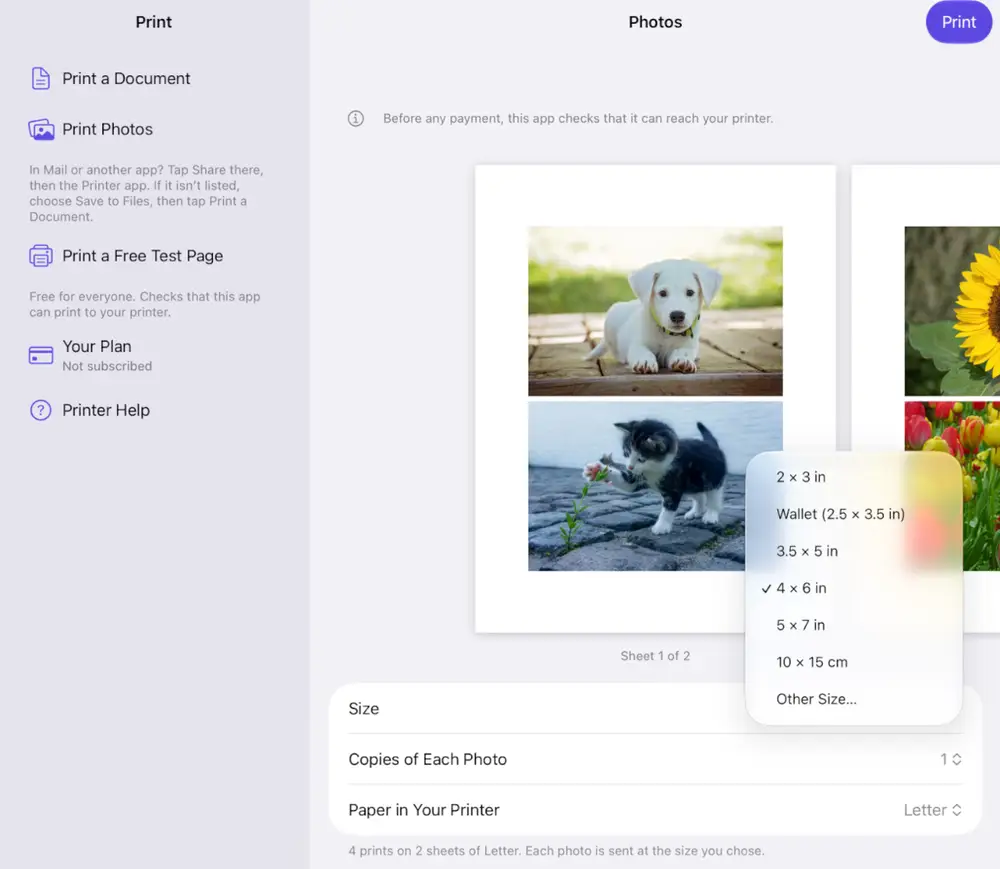
How it works
Apple’s own steps for printing a photo are Share, then Print. There is no size to choose, so iOS sizes the photo to the paper. iPrint Printer adds the step that’s missing.
Tap Print Photos and choose one or more photos in Apple’s photo picker. The app sees only the photos you pick.
2 x 3 in, Wallet (2.5 x 3.5 in), 3.5 x 5 in, 4 x 6 in, 5 x 7 in, 10 x 15 cm, or Other Size for your own.
Copies of each photo, and the paper in your printer: Letter, A4 or 4 x 6 in photo paper. The screen shows every sheet before anything prints.
The first time, choose your printer. Each photo is sent at the size you chose, several to a sheet when they fit, with a 3 mm gap to cut along.
Not sure about the size? Tap Print a Free Test Photo first: it prints one photo at the size and on the paper you chose.
Sizes and papers
Prints are never scaled, and they sit 3 mm apart so you can cut them. The counts allow for the quarter-inch margin most printers keep on plain paper; a printer with wider margins fits fewer, and the screen shows the real sheets before you print.
| Size | Letter | A4 | 4 x 6 photo paper |
|---|---|---|---|
| 2 x 3 in | 10 | 10 | 2 |
| Wallet (2.5 x 3.5 in) | 8 | 9 | 2 |
| 3.5 x 5 in | 4 | 4 | 1 |
| 4 x 6 in | 2 | 2 | 1 |
| 5 x 7 in | 2 | 2 | Too big |
| 10 x 15 cm | 2 | 2 | 1 |
Other Size: any width and height from 1 cm to 29.7 cm per side (about 0.4 to 11.6 in), typed in inches or centimetres.
Have 4 x 6 photo paper? Then you may not need an app: the Photos app on your iPhone prints a photo on it, from Share, then Print. iPrint Printer is for the sizes iOS can’t choose: a 4 x 6, 5 x 7 or wallet on letter or A4, and every size on the papers above.
Printers
Printers that support AirPrint, Apple’s way of printing from iPhone and iPad, on the same Wi-Fi as your iPhone or iPad. Apple says AirPrint is built into most popular printer models.
Not sure? Tap Print a Free Test Page. If a page comes out, you’re ready. When you tap Print, the app first checks that it can reach your printer, and only then shows the plans: if it can’t find your printer, you won’t be asked to pay.
Also in the app
Tap the crop button next to a photo. Drag to move it, pinch or tap Zoom In and Zoom Out. The dimmed parts won’t print.
Choose the copies of each photo, up to 12, or the number that fills the sheet. Each photo’s copies print together, in the order you picked.
Print a Document shows every page before you print. A page bigger than your paper? Shrink it to fit, or keep its actual size with the edges cut off.
Open the PDF or photo, tap Share, then tap Printer: that’s the app’s name on your Home Screen. Not in the list? Save to Files, then open the app.
Tap it after you print, or open Printer Help: is the printer on, on the same Wi-Fi, with paper and ink? It can send the same job again.
Shows your plan, the date it renews and how to cancel. Paid once in an earlier version? Tap Restore Purchases there.
Also: Dark Mode and larger text. Word, Excel and PowerPoint files open too, but they print as a copy made on your device that can look different; the app says so before you print.
Start with your size
Up to 2 prints at 4 x 6 on one letter sheet, 2 on A4, each sent at 4 x 6.
Printing 4x6 photos on letter paperWallet (2.5 x 3.5 in): up to 8 on a letter sheet, 9 on A4. At 2 x 3 in, up to 10.
Printing wallet-size photosUp to 2 prints at 5 x 7 on one letter or A4 sheet, turned sideways so both fit.
Printing 5x7 photosOther Size takes any width and height. Why resizing the photo itself doesn’t change how big it prints.
Resizing a photo to printYour printer has AirPrint? Print the free test page, then pick your size.
Free on the App Store iPrint Printer for AirPrintGuides
What iOS and Apple’s free apps can do first, and where a chosen size needs the app.
Your iPhone enlarges a photo to fill the letter sheet. How to print real 4x6 photos on letter or A4 paper: free with Pages, or two to a sheet with iPrint Printer.
Wallet size isn't one size. How to print 2.5x3.5 or 2x3 wallet photos from your iPhone at home, several to a letter sheet: the free routes, then iPrint Printer.
Changing a photo's pixel size on iPhone doesn't change how big it prints. Here's why, and how to print a picture smaller or at an exact size on letter or A4.
Print 5x7 photos from your iPhone on letter or A4 paper, two to a sheet: why Photos can't size them, the free Pages route, and the steps in iPrint Printer.
Privacy
The App Store privacy label reads Data Not Collected. You pick photos and files in Apple’s own pickers, and the app sees only those; it prints through Apple’s own printing system and asks for no permissions. What you print goes from your iPhone or iPad straight to your printer; FuturaApp, Inc. never receives it.
Read the app’s privacy policy.
Pricing
The test page and the test photo are free for everyone, so you know your printer works and the size is right before you pay.
Free
For everyone, with no account.
Print as many of your own documents and photos as you like, at every size, on Letter, A4 or 4 x 6 in photo paper.
Each plan after a 3-day free trial for eligible new subscribers. Renews automatically unless you cancel at least 24 hours before the period ends: in Your Plan, or in Settings, your name, Subscriptions. The plans show only after the app has reached your printer.
Free on the App Store iPrint Printer for AirPrintPaid once for Unlimited Printing in an earlier version? It still works: tap Restore Purchases in Your Plan.
FAQ
It works with printers that support AirPrint, Apple’s way of printing from iPhone and iPad. Your printer and your iPhone or iPad must be on the same Wi-Fi. A new printer must first be set up on your Wi-Fi with its maker’s instructions; this app can’t do that part. To be sure, tap Print a Free Test Page: if a page comes out, you’re ready.
Tap Print Photos and pick one or more photos. Choose a size (2 x 3 in, Wallet (2.5 x 3.5 in), 3.5 x 5 in, 4 x 6 in, 5 x 7 in, 10 x 15 cm, or Other Size for your own), then the number of copies and the paper in your printer: Letter, A4 or 4 x 6 in photo paper. Tap Print; the first time, choose your printer. When they fit, several photos go on one sheet. To try a size first, tap Print a Free Test Photo.
In the list of photos, tap the crop button next to a photo. Drag to move it, and pinch or tap Zoom In and Zoom Out to change how much shows. The dimmed parts won’t print. Tap the check mark to keep your choice.
The new Wi-Fi name and password are entered on the printer itself, or in the free app from the company that made it. This app can’t do that part, but once the printer is on the new Wi-Fi, the app finds it. Then tap Print a Free Test Page.
Check these, in order: is the printer on (a sleeping printer can take a minute to wake up)? Is your iPhone or iPad on the same Wi-Fi as the printer, not a guest network? Turn the printer off and on, wait a minute, then look again. If it never appears, the app can’t print to it, and you won’t be asked to pay.
Sent to your printer means your iPhone or iPad handed the job to the printer; the app can’t see the paper. Check the printer’s screen or lights for paper, ink or a paper jam. Then tap Nothing came out? under that message: the app walks you through the checks and can send the same job again.
The test page and the test photo are free for everyone. Printing your own documents and photos needs Unlimited Printing: $4.99 a week, $9.99 a month or $49.99 a year, after a 3-day free trial for eligible new subscribers. When you tap Print, the app first checks that your printer answers, then shows the plans and their prices.
In the app, tap Your Plan, then Cancel or Change Plan. Or open the Settings app, tap your name, then tap Subscriptions. Cancel at least 24 hours before your plan renews, or before your free trial ends, to avoid the next charge.
No. If you bought the one-time Unlimited Printing purchase in an earlier version, it still works. If Your Plan says Not subscribed, tap Restore Purchases there, signed in with the Apple Account you bought it with.
No. You pick the photos and files you want in Apple’s pickers, and the app sees only those. It prints through Apple’s own printing system and asks for no permissions.
More answers on the support page.
Download iPrint Printer, print the free test page, then choose 4 x 6, 5 x 7, wallet or your own size on the paper in your printer.